SOLUTIONS

VibeTrans 360 — document and master-data imports from Excel

Import invoices, despatch notes, financial transactions and master records from Excel into Logo with VibeTrans 360. Map the columns, check prepared records in the preview and follow each result in the import history.

Contact us
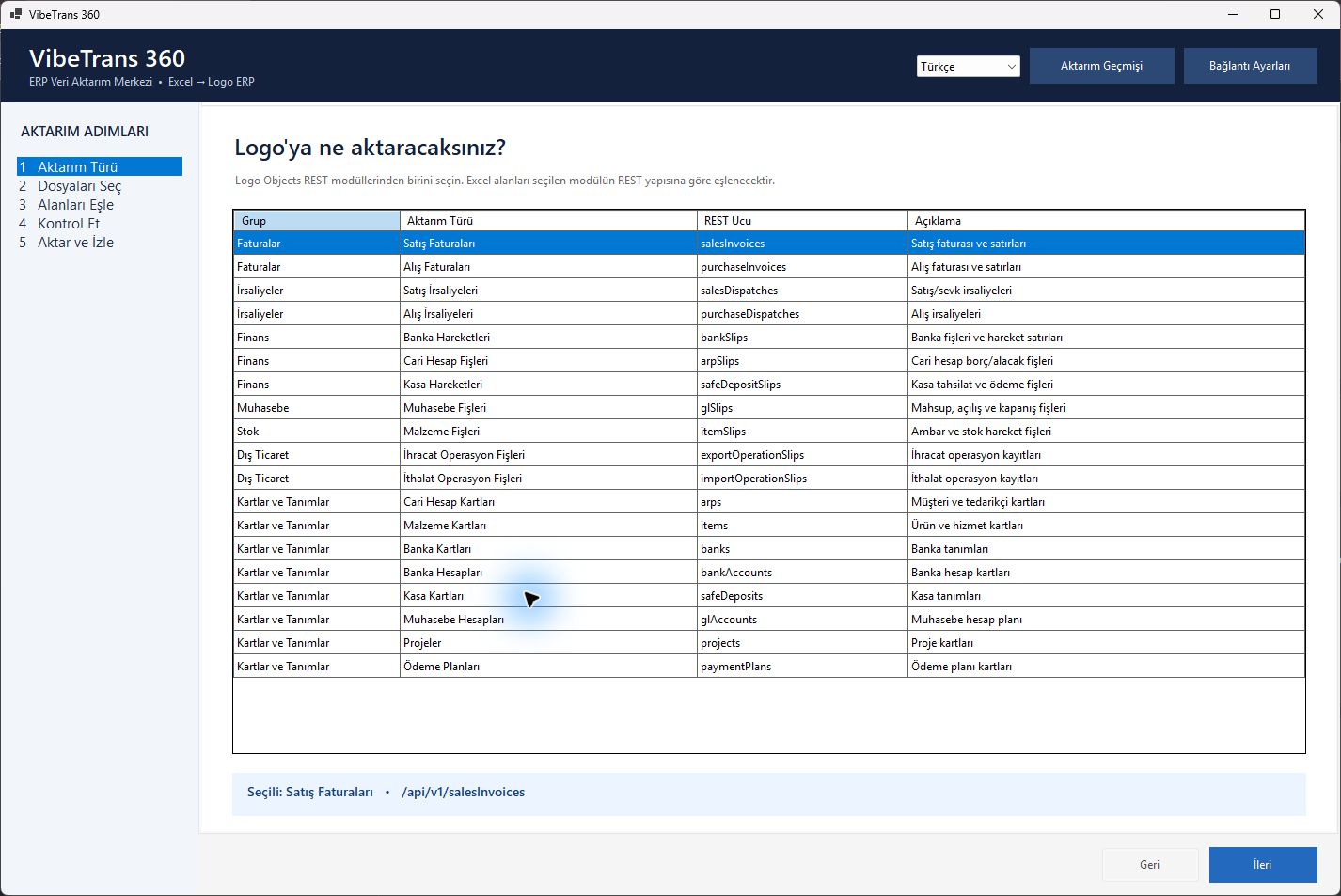
VibeTrans 360 import type selection: invoices, despatch notes, financial transactions and master records. Turkish interface.
Choosing which Excel records to import: invoices, despatch notes, financial transactions or master records. Turkish interface.View full size ↗

For teams entering Excel records into Logo again

Excel files received by accounting and operations teams may require another round of data entry in Logo. VibeTrans 360 supports bulk invoice and slip entry, initial master data imports and recurring files with the same structure. The starting point is identifying which Logo records and fields the spreadsheet data belongs to.

On this page7 sections

Commercial documents

Import purchase invoices, sales invoices, purchase dispatch notes and sales dispatch notes. Excel rows belonging to the same document are grouped together, preparing the document header and its transaction lines.

Finance, stock and foreign trade slips

The scope includes bank transactions, accounts receivable and payable slips, cash transactions, general ledger slips and material slips. Import and export operation slips can also be transferred using their respective record structures.

Master data and definitions

Import customer and supplier accounts, material cards, banks, bank accounts, cash accounts, general ledger accounts, projects and payment plans. Each Excel row is prepared as a separate master data record or definition.

WORKFLOW

Four steps from file to transfer results

Select the record type, then open your Excel files. Check the field mapping and prepared records before starting the transfer. Review each record’s outcome when the transfer is complete.

  1. Select files
  2. Map fields
  3. Check records
  4. Transfer and review results

Map spreadsheet columns to Logo fields

Edit the suggested column mappings and supply fixed values for fields missing from the file. Mappings are saved by company, period and record type. For invoice imports, you can also match the spreadsheet’s customer and material codes to their Logo equivalents.

Check records before sending them

The preview shows prepared records, line counts, errors and warnings. Invoice checks cover fields such as document number, customer code, date, material code, quantity and unit. Differences between line totals and the invoice amount appear as warnings. The checks depend on the record type.

See the result for each record

Import history lists successful, skipped and failed records. The source file, Logo reference and result message are available together. You can review error details and export session results as CSV.

Questions and answers

How should the Excel file be prepared?

Use .xlsx or .xls files; multiple files can be selected. Column headers must be in the first row and the data to import in the first worksheet. Field mapping follows the selected record type and the columns in your file.

Will selecting the same file again create duplicate records?

The default transfer option checks both successful transfer history and existing Logo records, skipping records it finds. Other transfer options can change this behaviour. Check the selected option and previous results before resending records.

What does setup require, and will it work with our Logo product?

VibeTrans 360 runs on Windows and connects through Logo Objects REST Service. We review your Logo product and version, service access, company and period permissions, and required record types against your existing installation. This review establishes the service and licensing requirements.

Content reviewed:

Related products and services

IMPLEMENTATION AND SERVICE

Integration Management and Data Flow

We develop services that move records between ERP, payroll, field and internal applications. For each order, despatch note or employee record, we define the source, mapping, transfer result and error handling as parts of the same connection.

Describe the Excel records to import

Tell us the product you use and the document or master-record types to import. We will review column mapping and connection requirements.

info@vibebilisim.com +90 (850) 242 84 23

VibeTrans 360

Logo product and version, record type and Excel column headings. At least 10 characters.

We use your details to respond to your request. Privacy notice